

X-API-Key header of each request. See Authentication.
Update the records of a data table
Create a data table for the API
Records sent through the API go to a data table connected to API Connection.1
Create the table
On the Data tables page, click Add table. Pick API Connection as the Integration, name the table, choose the User matching type used to match the user fields of your records to Qobra users, then click Add.
2
Add its fields
In the table’s Table settings, add every field you will send with Add field. Each field shows its API key under its name: it is the 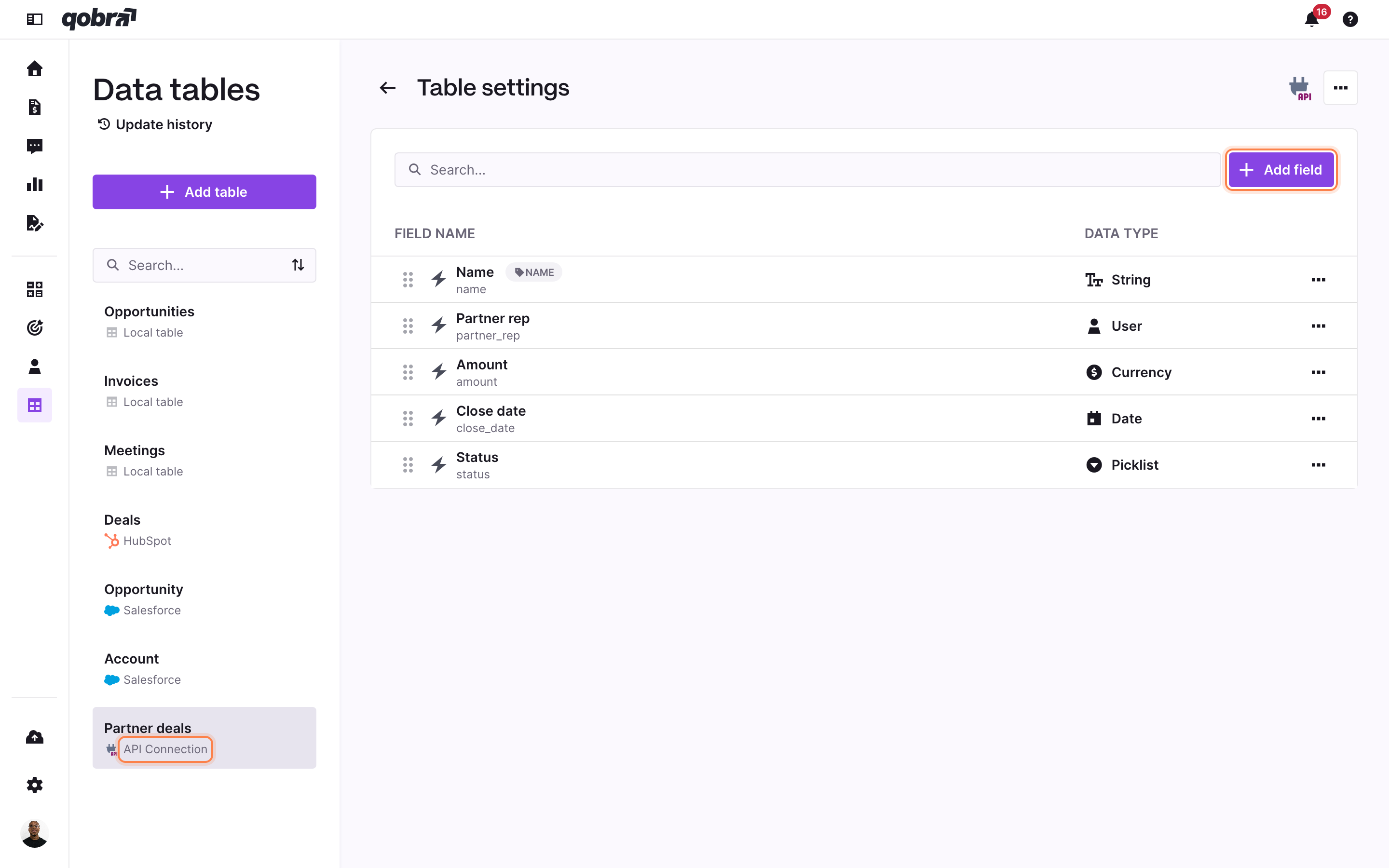
field-api-key you use in the payload.3
Find the keys of the table
Open the … menu of Table settings and click Edit. The Edit data table dialog shows the Table key, the 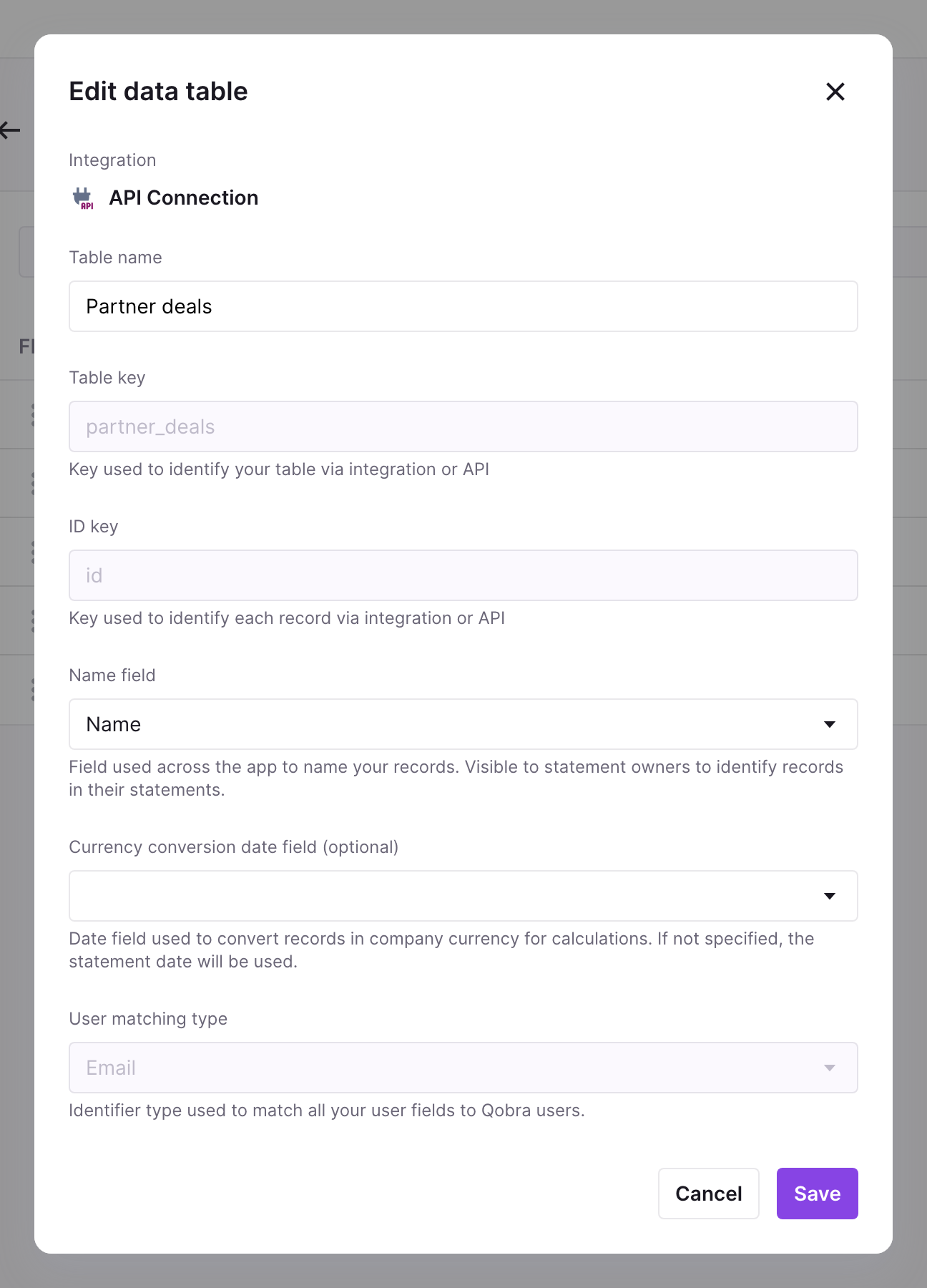
data_table_key of the endpoint URL, and the ID key, the field that identifies each record.Send the records
Send the records to Upsert records bulk, with the key of the data table and the API key of each field. A record with an existing ID is updated, a new ID creates a record.Update users
Group and manager attributions need the users they reference to exist already. Update your users first, wait for their import to finish, then update the group and manager attributions.
Send user attributes
To send custom columns of your users, such as a business unit or a hire date, a Qobra admin first creates them as user attributes in Settings > User attributes with New attribute.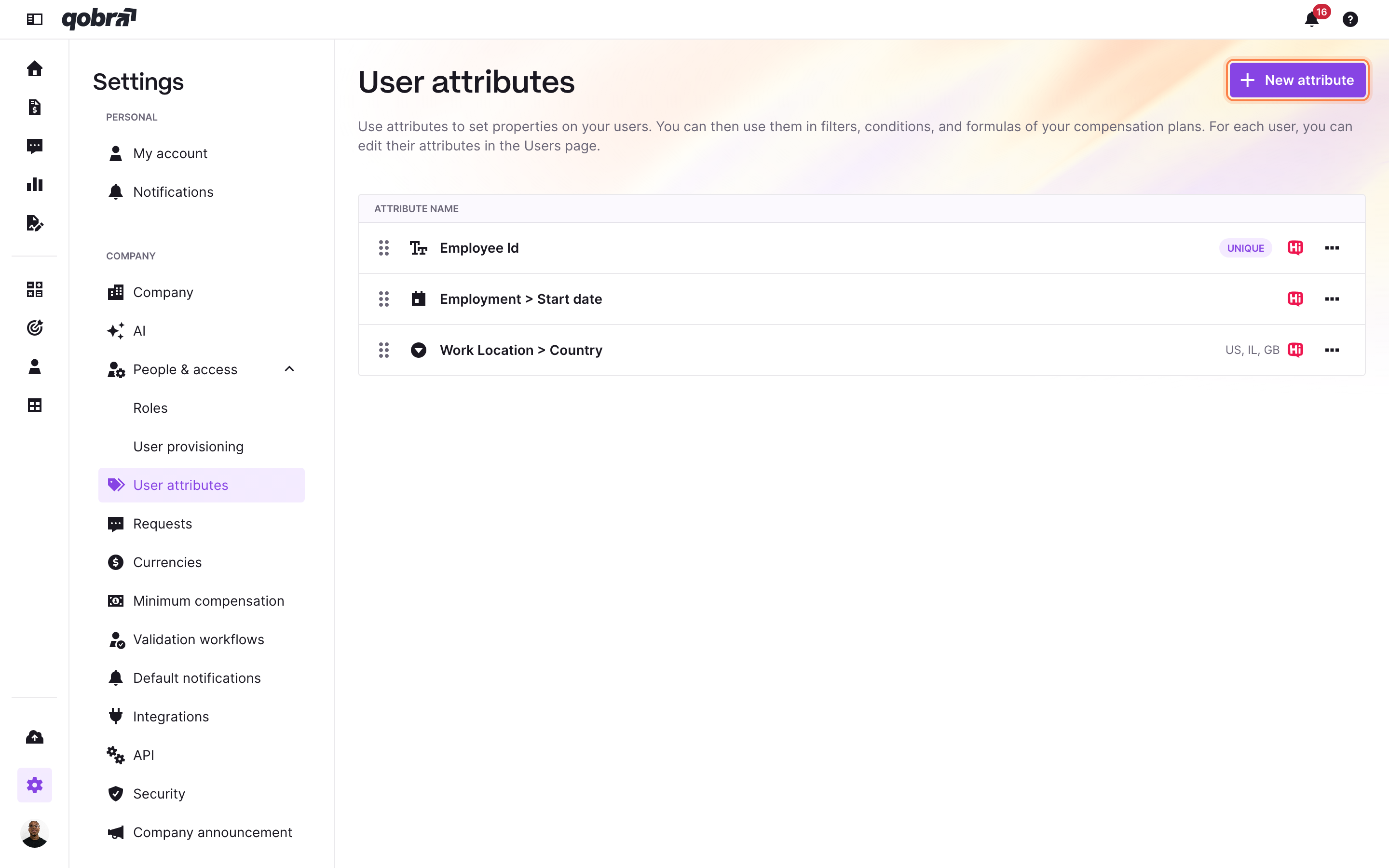
Follow the imports
Every update of records, users, groups or managers is asynchronous: the call creates an import and returns itsimport_id. A 200 means the import was created, not that the data was applied. Call Fetch import until its status is finished, then read its error flag to know whether records or users were skipped.
A call takes up to 200 items. To send more, split them across several calls, and pass debounce to merge the calls into one import. See Upsert users bulk.
Check the imports in Qobra
Qobra admins also see these imports in Qobra, with the payloads you sent:- the imports of records, in the update history of the Data tables page;
- the imports of users, groups and managers, in the update history of the Users page, with API as their source.
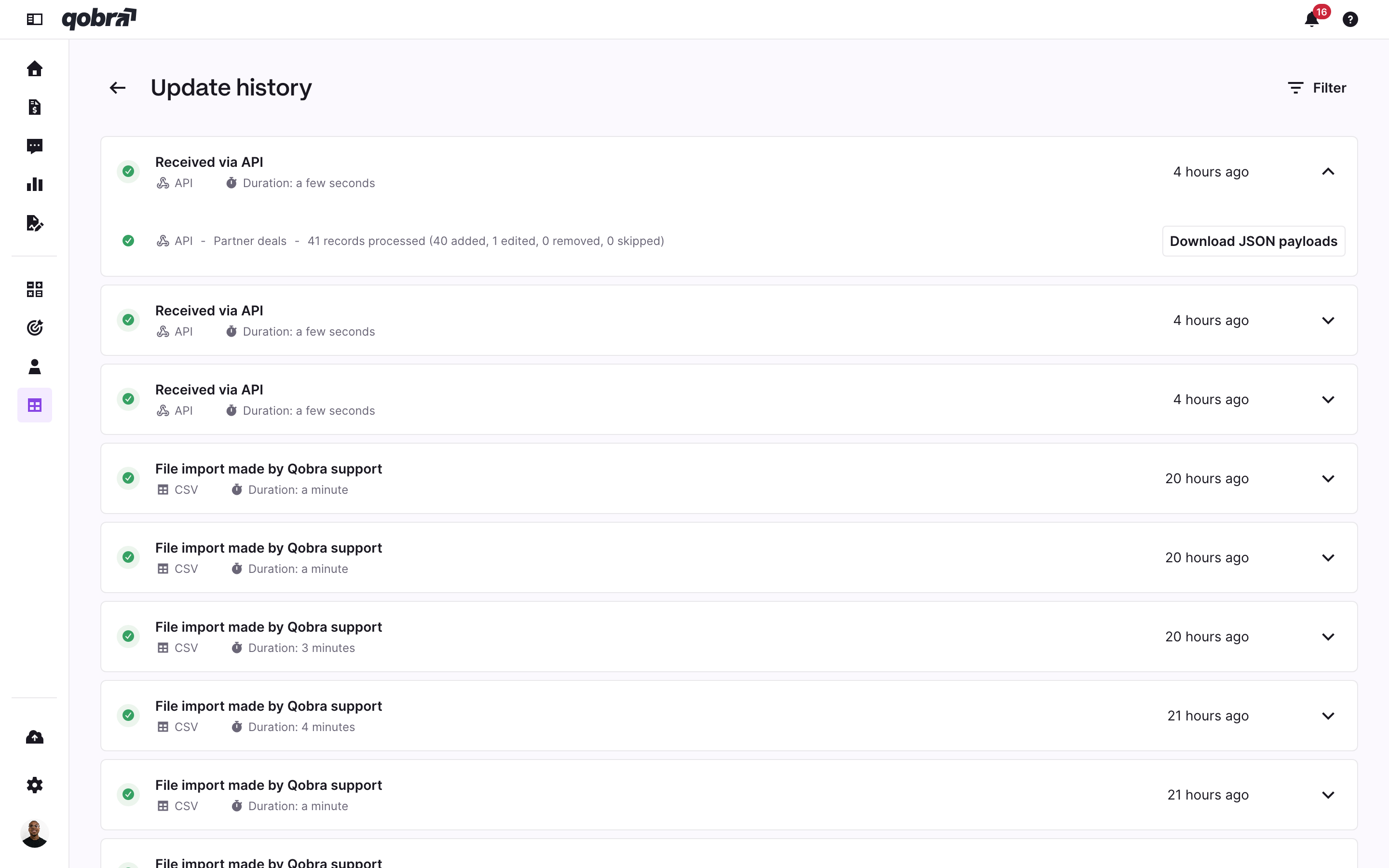
- The import is not in the update history: the call was refused. Check the API key and the response of the call.
-
The import has an error: click it to read the records that were not imported, with the reason.
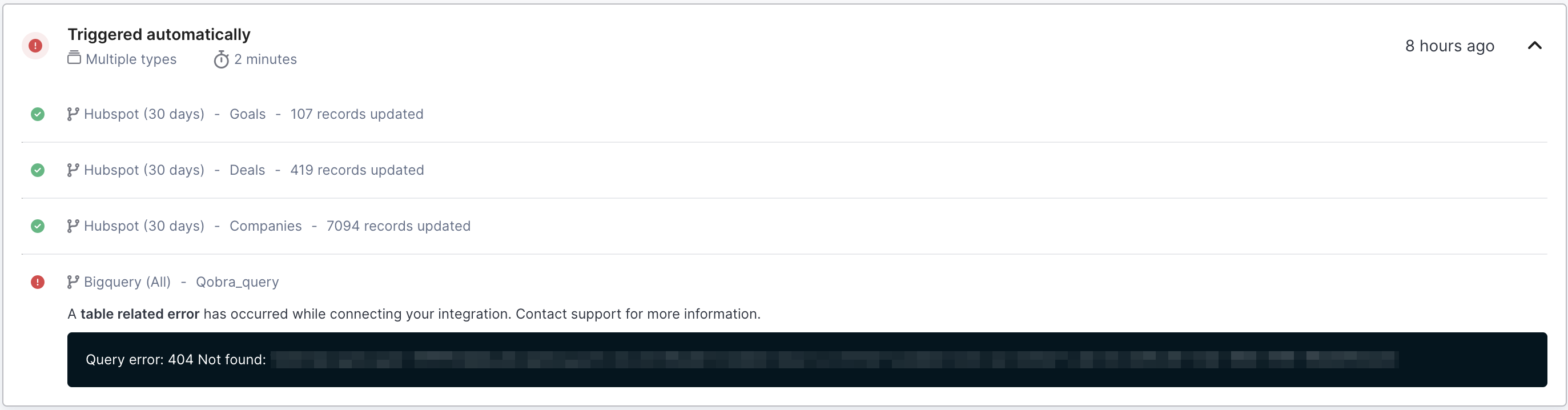
- The import succeeded but the data did not change: the keys in your payload do not match the API keys of the table and its fields in Qobra.