

These settings are in Settings > Security and require a role with
Security: Can edit in its company settings permissions. Changes apply to
the whole company: tell your users before you turn a method off.
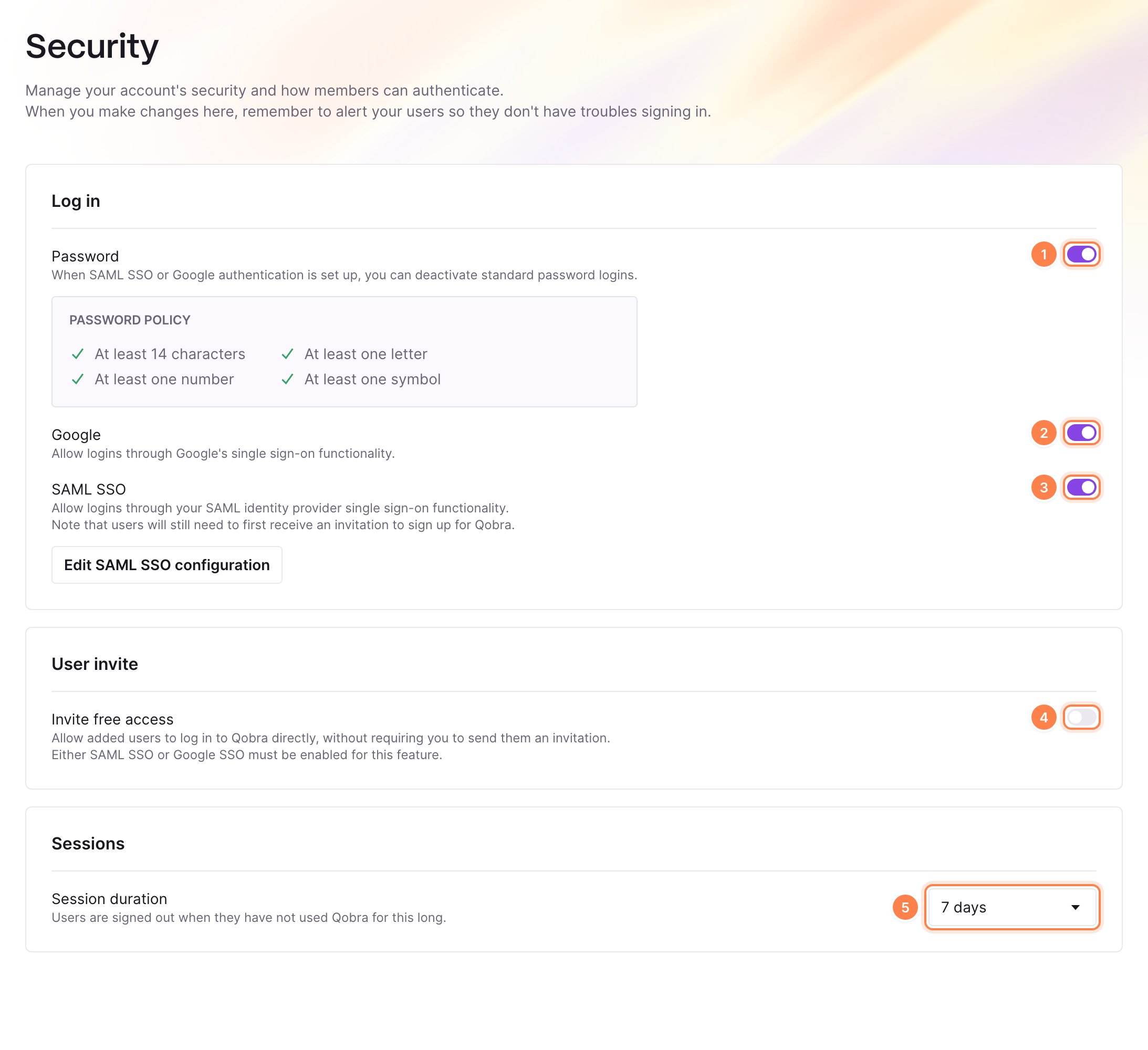
1. Password
Users enter their work email, click Log in with email, then type their password. The password policy is the same for every company: at least 14 characters, with at least one letter, one number and one symbol.- First password: a new user chooses it from the link in their Qobra invitation.
- Forgotten password: on the login screen, the user clicks Forgot password? and receives a reset link, valid for one day. A user who never accepted their invitation receives a new invitation link instead.
- Change of password: each user can click Change password in Settings > My account. The button is hidden while SAML SSO is on.
2. Google
Users click Log in with Google and pick the Google account of their work email. Qobra signs in the user whose email matches that account: the user must already exist in Qobra.3. SAML SSO
Users click Log in with SSO and sign in with your identity provider, such as Okta, Microsoft Entra ID or Keycloak. Turning the switch on opens the SAML configuration. See SAML single sign-on for the setup in Qobra and in your identity provider.4. Invite free access
By default, a user added in Qobra can sign in only after they receive the Qobra invitation. With Invite free access on, users you add can sign in right away with Google or SAML SSO, without an invitation. Invite free access requires Google or SAML SSO to be on. It turns off on its own when you turn both off.5. Session duration
Session duration signs users out when they have not used Qobra for this long: 1 hour, 8 hours, 1 day, 3 days or 7 days (the default). Each time a user works in Qobra, their session is extended.Invitations
The Qobra invitation email lists the sign-in methods your company has on, and its link expires after 31 days. With password on, the user chooses their password from the link. With Google or SAML SSO, their first sign-in activates their access. To send an invitation again, see Introduction to users.Troubleshooting
A user can't sign in with Google
A user can't sign in with Google
Check that Google is on in Settings > Security, that the user exists
in Qobra with the same email as their Google account, and that their access
is active. Without Invite free access, a user who never received the
invitation can’t sign in yet.
A user doesn't receive the reset email
A user doesn't receive the reset email
Check that Password is on: Qobra sends no reset link when it is off.
Ask the user to check their spam folder, and that the email they entered is
the one of their Qobra account.
Users are signed out too often
Users are signed out too often
Increase the Session duration. It counts the time since the user last
used Qobra, not the time since they signed in.