> ## Documentation Index
> Fetch the complete documentation index at: https://docs.qobra.co/llms.txt
> Use this file to discover all available pages before exploring further.
# snowflake
The integration is used to synchronize exposed tables, their columns, and their content. It is read-only and does not write anything to your Snowflake database.
## Setup
1. Create a dedicated account to set up the Qobra connection, following the principle of least privilege. This means the account should have read-only access to the tables that need to be synchronized with Qobra. You’ll find Snowflake’s documentation regarding *User, role, and privilege commands* [here](https://docs.snowflake.com/en/sql-reference/commands-user-role).
2. Whitelist Qobra’s IP address: `13.39.2.144` (infra EU) or `18.206.233.133` (infra US).
3. Configure key-pair authentication to enable the Snowflake integration within the Qobra application. We recommend following the official [Snowflake documentation](https://docs.snowflake.com/en/user-guide/key-pair-auth#configuring-key-pair-authentication) to correctly generate and configure the key pair required to complete the connection.
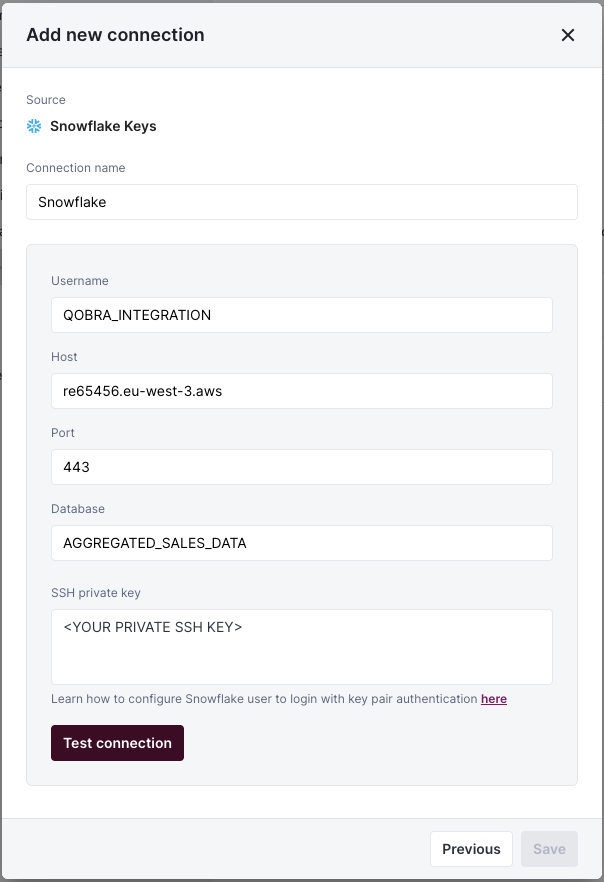
4. You’ll then be able to fill in the connection modal in app:
* `Username`: Snowflake account username
* `Host`: Snowflake account’s unique URL
* `Port`: by default `443` for encrypted (TLS/SSL) connections
* `Database`: Snowflake database
* `SSH private key`: The private SSH key generated at step 3
 ## Synchronization
| **Snowflake type** | **Qobra type** |
| ------------------ | --------------------------------------------- |
| `TEXT` | `string`, `picklist`, `multipicklist`, `user` |
| `NUMBER` | `number`, `amount`, `percentage`, `user` |
| `FLOAT` | `number`, `amount`, `percentage` |
| `DATE` | `date` |
| `TIMESTAMP_TZ` | `date` |
Custom queries are based on SQL where conditions. For instance, you could add as a custom query `StageName = 'Closed Won’` to filter your Opportunity object.
Contact support for more information.
## Synchronization
| **Snowflake type** | **Qobra type** |
| ------------------ | --------------------------------------------- |
| `TEXT` | `string`, `picklist`, `multipicklist`, `user` |
| `NUMBER` | `number`, `amount`, `percentage`, `user` |
| `FLOAT` | `number`, `amount`, `percentage` |
| `DATE` | `date` |
| `TIMESTAMP_TZ` | `date` |
Custom queries are based on SQL where conditions. For instance, you could add as a custom query `StageName = 'Closed Won’` to filter your Opportunity object.
Contact support for more information.