> ## Documentation Index
> Fetch the complete documentation index at: https://docs.qobra.co/llms.txt
> Use this file to discover all available pages before exploring further.
# PostgreSQL
## Introduction
Qobra can connect to PostgreSQL by two means:
* username / password credentials.
* service account (only available for Google Cloud Platform)
The integration is used to synchronize exposed tables, their columns and their
content. This integration is readonly and does not write anything in your
PostgreSQL database.
## Setup via SQL user
1. Create an account to setup the Qobra connection, ensuring the principle of
least privilege. This means the account needs to have read only access, on
table that need to be synchronized with Qobra.
You’ll find Postgre’s documentation regarding User, role, & privilege
commands [here](https://www.postgresql.org/docs/8.0/user-manag.html).
Once your account is created, make sure you keep its username and password
for later steps.
2. Whitelist Qobra’s IP: `13.39.2.144`
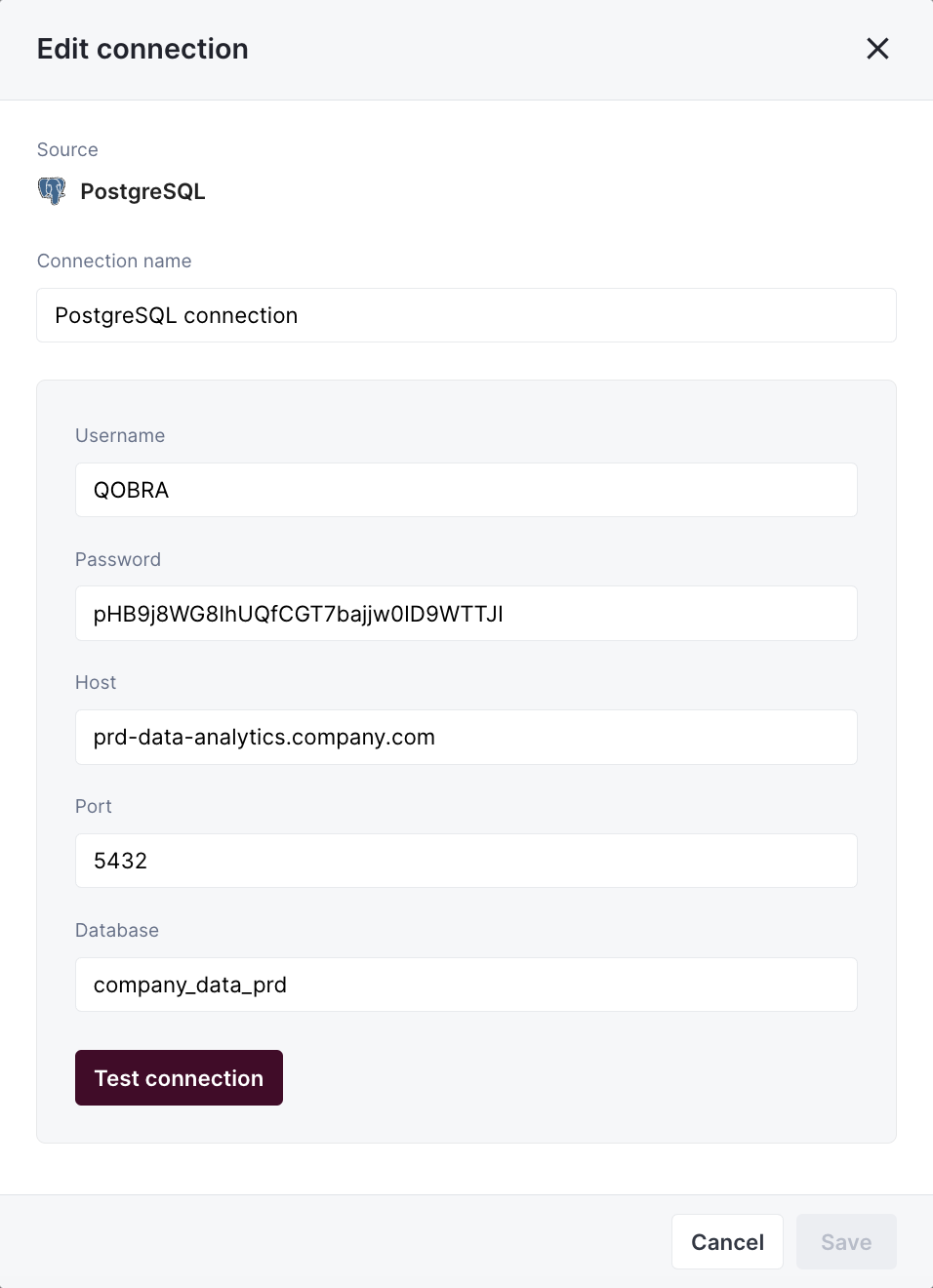
3. You’ll then be able to fill in connection modal in app:
* `Username`: PostgreSQL account username
* `Password`: PostgreSQL account password
* `Host`: PostgreSQL account’s unique URL
* `Port`: by default 5432
* `Database`: PostgresSQL database
 ## Setup via service account
1. Create a service account from your google account, it should look something like this:
```json theme={null}
{
"type": "service_account",
"project_id": "project-id",
"private_key_id": "key-id",
"private_key": " - - -BEGIN PRIVATE KEY - - -\nprivate-key\n - - -END PRIVATE KEY - - -\n",
"client_email": "service-account-email",
"client_id": "client-id",
"auth_uri": "https://accounts.google.com/o/oauth2/auth",
"token_uri": "https://accounts.google.com/o/oauth2/token",
"auth_provider_x509_cert_url": "https://www.googleapis.com/oauth2/v1/certs",
"client_x509_cert_url": "https://www.googleapis.com/robot/v1/metadata/x509/service-account-email"
}
```
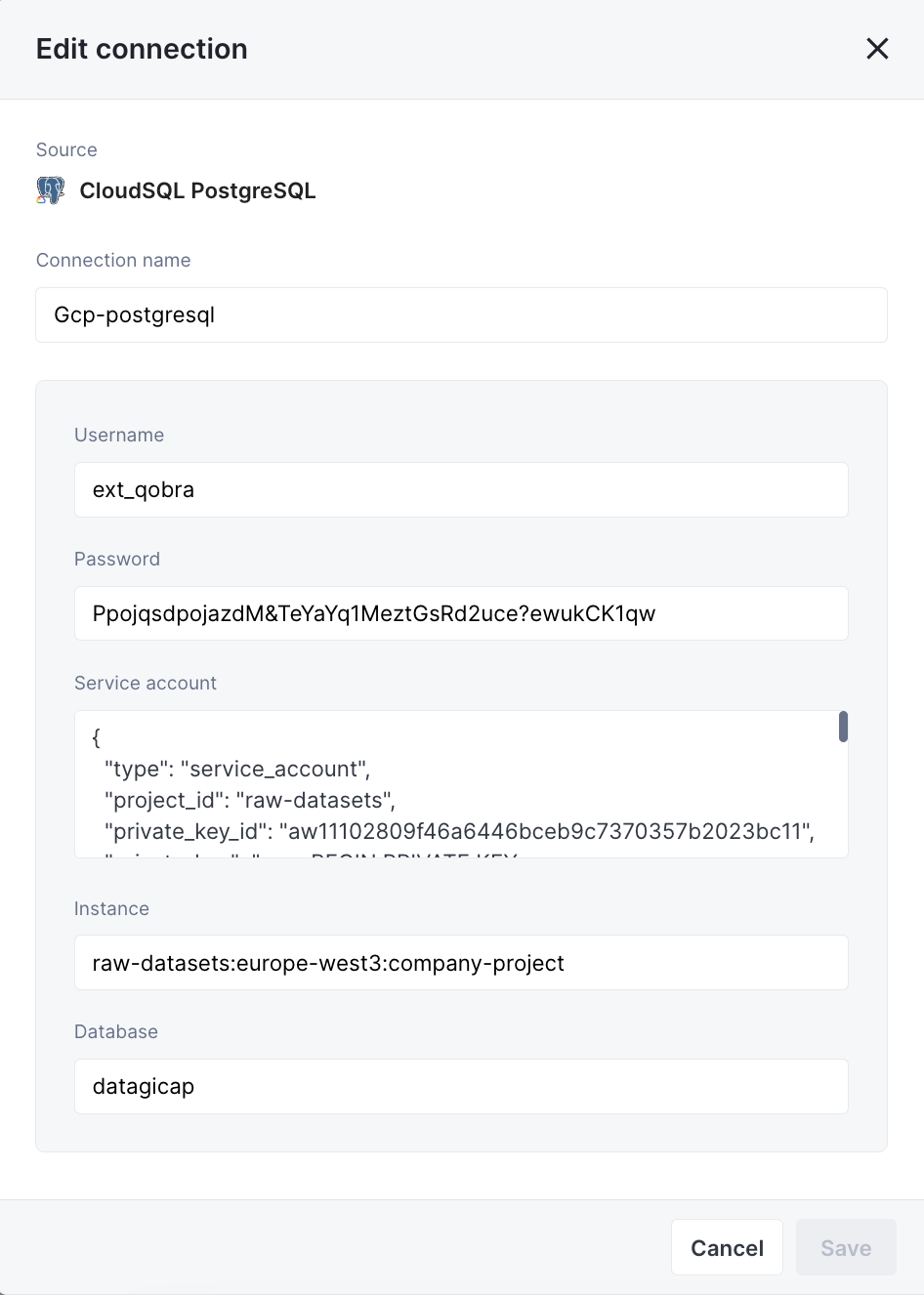
2. You’ll then be able to fill in connection modal in app:
* `Username`: PostgreSQL account username
* `Password`: PostgreSQL account password
* `Service account`: PostgreSQL account’s unique URL
* `Instance`: PostgresSQL instance
* `Database`: PostgresSQL database
## Setup via service account
1. Create a service account from your google account, it should look something like this:
```json theme={null}
{
"type": "service_account",
"project_id": "project-id",
"private_key_id": "key-id",
"private_key": " - - -BEGIN PRIVATE KEY - - -\nprivate-key\n - - -END PRIVATE KEY - - -\n",
"client_email": "service-account-email",
"client_id": "client-id",
"auth_uri": "https://accounts.google.com/o/oauth2/auth",
"token_uri": "https://accounts.google.com/o/oauth2/token",
"auth_provider_x509_cert_url": "https://www.googleapis.com/oauth2/v1/certs",
"client_x509_cert_url": "https://www.googleapis.com/robot/v1/metadata/x509/service-account-email"
}
```
2. You’ll then be able to fill in connection modal in app:
* `Username`: PostgreSQL account username
* `Password`: PostgreSQL account password
* `Service account`: PostgreSQL account’s unique URL
* `Instance`: PostgresSQL instance
* `Database`: PostgresSQL database
 ### Table requirements
To synchronize a file to Qobra, it must meet requirements:
* the file contains a **unique identifier** column
* the file contains a **name** column
* the user values contained in the file must be emails by default, but it can be changed in app at table creation
### Total synchronization
This integrations does total synchronization, meaning the whole document will
be synced at every refresh.
### Refresh Schedule
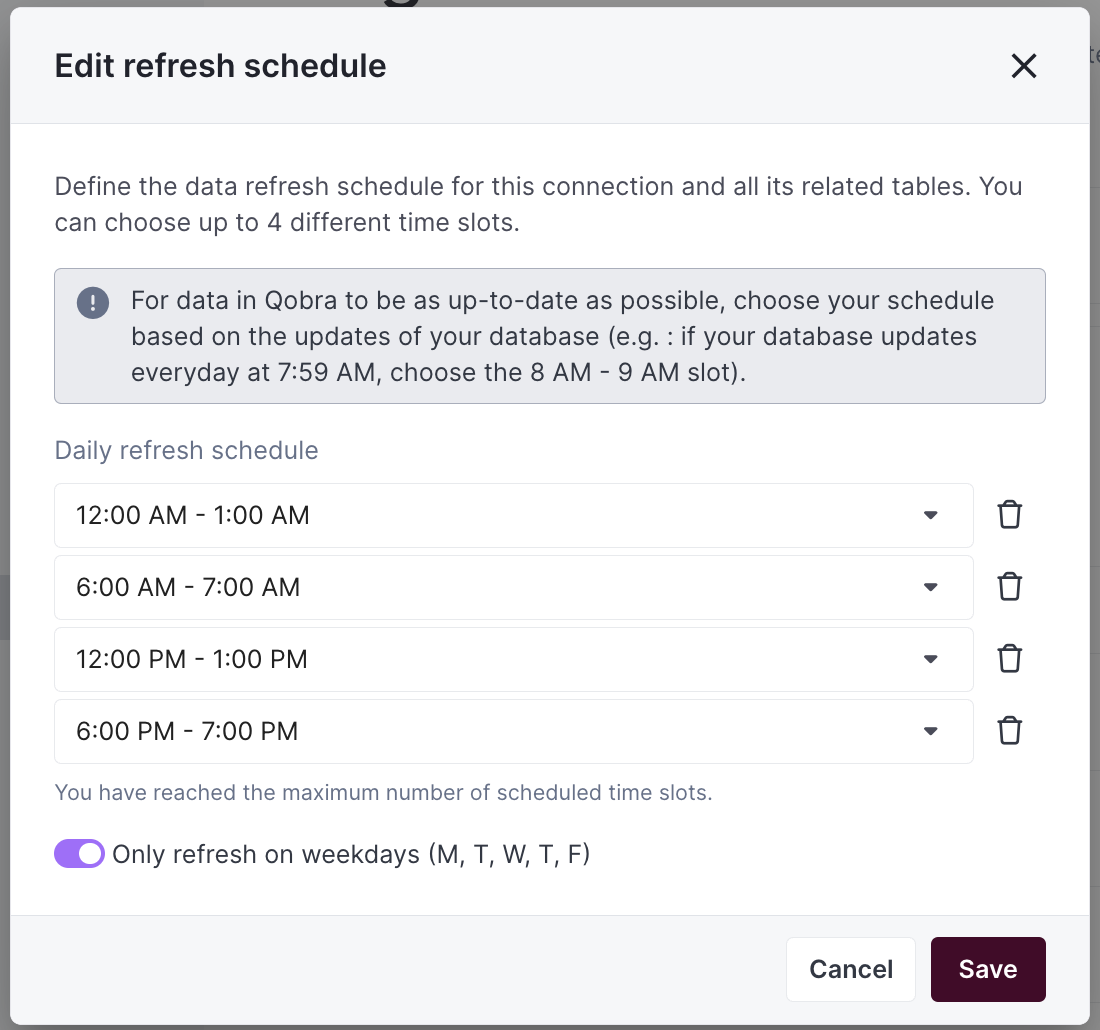
By default, we perform one Full Refresh per day to keep your data up to date. However, you can customize both the frequency and timing of these refreshes to better suit your needs:
* **Default Schedule**: one Full Refresh per day
* **Customizable Options**:
* Adjust the number of daily refreshes
* Set specific hours for the refreshes to occur
* Configure the schedule through your integration settings
* **On-Demand Updates**: Need the latest data right away? Just click the refresh button in your integration settings
### Table requirements
To synchronize a file to Qobra, it must meet requirements:
* the file contains a **unique identifier** column
* the file contains a **name** column
* the user values contained in the file must be emails by default, but it can be changed in app at table creation
### Total synchronization
This integrations does total synchronization, meaning the whole document will
be synced at every refresh.
### Refresh Schedule
By default, we perform one Full Refresh per day to keep your data up to date. However, you can customize both the frequency and timing of these refreshes to better suit your needs:
* **Default Schedule**: one Full Refresh per day
* **Customizable Options**:
* Adjust the number of daily refreshes
* Set specific hours for the refreshes to occur
* Configure the schedule through your integration settings
* **On-Demand Updates**: Need the latest data right away? Just click the refresh button in your integration settings
 ### Supported types
You’ll find below the fields types supported by the Qobra integration,
and their mapping to Qobra types.
| **Postgres type** | **Qobra type** |
| ----------------------------- | --------------------------------------------- |
| `TEXT` | `string`, `picklist`, `multipicklist`, `user` |
| `CHARACTER` | `string`, `picklist`, `multipicklist`, `user` |
| `CHARACTER VARYING` | `string`, `picklist`, `multipicklist`, `user` |
| `DATE` | `date` |
| `TIMESTAMP WITHOUT TIME ZONE` | `date` |
| `TIMESTAMP WITH TIME ZONE` | `date` |
| `INTEGER` | `number`, `amount`, `percentage`, `user` |
| `SMALLINT` | `number`, `amount`, `percentage`, `user` |
| `BIGINT` | `number`, `amount`, `percentage`, `user` |
| `DOUBLE PRECISION` | `number`, `amount`, `percentage` |
| `NUMERIC` | `number`, `amount`, `percentage` |
| `FLOAT` | `number`, `amount`, `percentage` |
| `REAL` | `number`, `amount`, `percentage` |
| `MONEY` | `amount` |
| `BOOLEAN` | `bool` |
| `BIT` | `string` |
| `BIT VARYING` | `string` |
### Custom querying
With this integration, you can apply a custom query to your
table synchronization, to avoid synchronizing too much information,
consequently making synchronization quicker.
Custom queries are based on SQL where conditions. For instance, you could add as a custom query `StageName = 'Closed Won’` to filter your Opportunity object.
Contact support for more information.
### Supported types
You’ll find below the fields types supported by the Qobra integration,
and their mapping to Qobra types.
| **Postgres type** | **Qobra type** |
| ----------------------------- | --------------------------------------------- |
| `TEXT` | `string`, `picklist`, `multipicklist`, `user` |
| `CHARACTER` | `string`, `picklist`, `multipicklist`, `user` |
| `CHARACTER VARYING` | `string`, `picklist`, `multipicklist`, `user` |
| `DATE` | `date` |
| `TIMESTAMP WITHOUT TIME ZONE` | `date` |
| `TIMESTAMP WITH TIME ZONE` | `date` |
| `INTEGER` | `number`, `amount`, `percentage`, `user` |
| `SMALLINT` | `number`, `amount`, `percentage`, `user` |
| `BIGINT` | `number`, `amount`, `percentage`, `user` |
| `DOUBLE PRECISION` | `number`, `amount`, `percentage` |
| `NUMERIC` | `number`, `amount`, `percentage` |
| `FLOAT` | `number`, `amount`, `percentage` |
| `REAL` | `number`, `amount`, `percentage` |
| `MONEY` | `amount` |
| `BOOLEAN` | `bool` |
| `BIT` | `string` |
| `BIT VARYING` | `string` |
### Custom querying
With this integration, you can apply a custom query to your
table synchronization, to avoid synchronizing too much information,
consequently making synchronization quicker.
Custom queries are based on SQL where conditions. For instance, you could add as a custom query `StageName = 'Closed Won’` to filter your Opportunity object.
Contact support for more information.